GlusterFS Bangalore Workshop

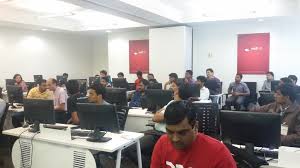
An introductory workshop on GlusterFS was held at Red Hat, Bangalore office (http://www.meetup.com/glusterfs-India/events/225770608/ ) on 31st October. Around 15 people turned up for the event. There were admins, DevOps and a few developers. As requested on the meetup page, the participants had turned up with their laptops to experience the awesomeness of Gluster!!

We started with a self-introduction. Then CentOS VM images containing pre-installed gluster packages were distributed. While the participants were deploying VM images, a brief introductory talk on GlusterFS was held. Prashanth Pai explained basic Gluster terminologies, various types of volumes, replication, geo-replication etc.

This was followed by a basic demo by Poornima which taught the participants to create a cluster, create different types of volumes, mount volumes etc.

Few participants were keen on using GlusterFS volumes over NFS and also in other cloud use-cases such as setting up GlusterFS + NFS HA cluster in AWS deployment. Further, Aravinda explained the advantages of using geo-replication for async replication.

The workshop was overall well received and we were glad to receive requests to conduct more GlusterFS Workshops!! You can read some feedback about this event here. Thanks to all speakers & attendees.

ps# If you would like to receive notifications about the upcoming GlusterFS meetups/workshops happening in India, join our meetup group http://www.meetup.com/glusterfs-India.

Docker gotchas ( 1. ENTRYPOINT Vs CMD in Dockerfile)

Well, most of the folks are really confused about the difference between ENTRYPOINT and CMD, so you.
Its simple. Whatever you fill in CMD will be given to the ENTRYPOINT as an argument.

For ex: If you have a dockerfile like this.

CMD ["-tupln"]
ENTRYPOINT ["/usr/bin/netstat"]

and when you run the container without any other command ( For ex:#docker run ..... )
The above instruction basically make it something like "netstat -tulpn" for the container to execute.
Also there is a default entrypoint for each container which is nothing but "/bin/sh -c"
. However note that, the CMD used at end of the " #docker run ... .. " will overwrite the default command.

You also need to pay some attention on the syntax you use for CMD or ENTRYPOINT. The difference when you use array syntax ( CMD [" "] or shell syntax ( CMD ls -l) is nothing but, if you are not using the array syntax the arguments are prepended with the default entry point which is nothing but "/bin/sh -c". It may generate unexpected result. So, its always adviceable to use array syntax when using CMD or ENTRYPOINT.

Docker Tips and Tricks

In this article I will share some of the docker commands which I use at times. May be it can help you as well.

1) List all the containers including those are not running, by default only running containers are listed.

#docker ps -a

2) Delete all stopped containers.

$ docker rm $(docker ps -a -q)

3) IP address of all running containers.

$docker inspect $(docker ps -q) | grep IPAddress | cut -d ‘”‘ -f 4

4) If you want to list IP address of one of the container.

#docker inspect -f ‘{{ .NetworkSettings.IPAddress }}’ “container ID”

5) If you want to get into a container, use “docker exec” command. You can treat this as a replacement for “sshd” or “nsenter”.

$docker exec -ti “container ID” /bin/bash

6) Stop all running containers.

$docker stop $(docker ps -a -q)

7) To delete all existing docker images.

$docker rmi $(docker images -q -a)

8) To examine the logs of a container, use docker logs command with -f option which follows log output and continues streaming the new output from the container’s STDOUT and STDERR.:

$docker logs -f “Container ID”

9) Get the ID of last ran container.

$docker ps -a -q -l –no-trunc=true

10) Most of the time we want to exec into the container we just ran.

#docker exec -ti ( docker ps -a -q -l) /bin/bash

11) To list out the environment variables of an image

#docker run env

Gluster volume plugin of docker !!

Does gluster volume plugin available for docker?

Yes, its available here .

This article talks about how to use this plugin and make use of gluster volume when spawning docker containers.

For the gluster volume plugin to work, we need an experimental build of docker which can be fetched from docker Github. If you dont have the experimental binary of docker running in your system get it from docker Github.

https://github.com/docker/docker/tree/master/experimental have instructions on how to run docker experimental binary.

Once your docker daemon is running from the experimental build, pull gluster volume plugin from github source.

[root@dhcp35-20 go]# go get github.com/calavera/docker-volume-glusterfs

As mentioned in the README file in github, you need to execute ‘docker-volume-glusterfs’ as shown below. That said, here the IP, “10.70.1.100” is my gluster server which export a replica volume called ‘test-vol’. For more details on gluster volume types and configuration please refer http://gluster.readthedocs.org/en/latest/ .

[root@dhcp35-20 go]# docker-volume-glusterfs -servers 10.70.1.100
[root@dhcp35-20 check1]# ps aux |grep docker root 7674 0.0 0.0 7612 1596 pts/13 Sl+ 12:47 0:00 ./docker-volume-glusterfs -servers 10.70.1.100 root 8169 0.0 0.3 558828 29924 pts/14 Sl 12:52 0:00 ./docker-latest daemon

Once its done, we can spawn containers as shown below, where ‘test-vol’ is the gluster volume name and “/b1” is the mount point in spawned container, ‘docker.io/fedora’ is the image name.

‘touch /b1/second” create a file called ‘second’ in “/b1” mount point.

[root@]# ./docker-latest run -it –volume-driver glusterfs –volume test-vol:/b1 docker.io/fedora touch /b1/second

INFO[4891] POST /v1.21/containers/create INFO[4892] POST /v1.21/containers/b3b61146188db97e3b2c96e1ae38dc53478287d557e24a26b0dcbf09be68140a/attach?stderr=1&stdin=1&stdout=1&stream=1 INFO[4892] POST /v1.21/containers/b3b61146188db97e3b2c96e1ae38dc53478287d557e24a26b0dcbf09be68140a/start INFO[4892] POST /v1.21/containers/b3b61146188db97e3b2c96e1ae38dc53478287d557e24a26b0dcbf09be68140a/resize?h=46&w=190 INFO[4892] GET /v1.21/containers/b3b61146188db97e3b2c96e1ae38dc53478287d557e24a26b0dcbf09be68140a/json

Let us verify whether the file creation worked successfully and the new file (second) is available in the brick path of gluster server node.

From ‘test-vol’ volume details, we can see that “/home/test-brick1” is one leg of replica volume in my setup.

Volume Name: test-vol Type: Replicate Volume ID: 2cebb33f-e849-40c1-9344-939025f80b1f Status: Started Number of Bricks: 1 x 2 = 2 Transport-type: tcp Bricks: Brick1: 10.70.1.100:/home/test-brick1 Brick2: 10.70.1.101:/home/test-brick2 Options Reconfigured: performance.readdir-ahead: on You have new mail in /var/spool/mail/root [root@dhcp1-100 test-brick1]#

[root@dhcp1-100 test-brick1]# pwd /home/test-brick1 [root@dhcp1-100 test-brick1]# ls second

Awesome !! Isn’t it?

Thanks https://github.com/calavera for the plugin & Thanks neependra for pointers.

Announcing Open Source Virtualization India meetup group

We are glad to announce the Opensource Virtualization India meetup group!! Its been long time we are answering/discussing virt related queries via emails or irc, so the effort to bring virtualizers under one group.

This is a forum which discuss about various opensource Llinux virtualization technologies like Xen, KVM, Ovirt..and the friends libvirt, virt-manager..etc

If you would like to be part of it, please join http://www.meetup.com/open-virtualization-india/

We have scheduled 3 meetups ( Bangalore, Pune, Aurangabad) for near future, yet to decide the exact dates though.


Pune – Organizer: Anil Vettathu

Aurangabad – Organizer: Ashutosh Sudhakar Bhakare

Please let me know if you would like to volunteer for any of the meetups in your area.

** Welcome Virtualizers!! **

Gluster 3.7 upgrade in EL systems.

If you are upgrading your Gluster 3.6 EL systems ( RHEL, SL..etc) to Gluster 3.7, you may come into package dependency issues.

For ex: in EL6 system:

error: Failed dependencies: pkgconfig(sqlite3) is needed by glusterfs-api-devel-3.7.0-1.el6.x86_64 pkgconfig(uuid) is needed by glusterfs-api-devel-3.7.0-1.el6.x86_64 python-argparse is needed by glusterfs-server-3.7.0-1.el6.x86_64 pyxattr is needed by glusterfs-server-3.7.0-1.el6.x86_64 liburcu-bp.so.1()(64bit) is needed by glusterfs-server-3.7.0-1.el6.x86_64 liburcu-cds.so.1()(64bit) is needed by glusterfs-server-3.7.0-1.el6.x86_64

The above-listed dependencies ( pyxattr, python-argparse, userspace-rcu..etc) are part of EPEL repo. You can enable EPEL repo in your system by executing the below command.

rpm -ivh http://dl.fedoraproject.org/pub/epel/epel-release-latest-${RHEL_VERSION}.noarch.rpm

NOTE: Replace ‘RHEL_VERSION’ with ‘5’,’6′, or ‘7’.

Once EPEL repo is enabled it will resolve the dependencies.

Building GlusterFS in a docker container

Although Setting up a glusterfs environment is a pretty simple and straightforward procedure, Gluster community do maintain docker images for gluster both in Fedora and CentOS in the docker hub for the ease of users. This blog is intended to walk the user through the steps of running GlusterFS with the help of docker.
The community maintains docker images GlusterFS release 3.6 in both Fedora-21 and CentOS-7. The following are the steps to build the GlusterFS docker images that we maintain:
To pull the docker image from the docker hub run the following command:
For GlusterFS-3.6 in Fedora-21

$ docker pull gluster/gluster-fedora

For GlusterFS-3.6 in CentOS-7

$ docker pull gluster/gluster-centos

This will fetch and build the docker image for you from the docker hub.
Alternatively, one could build the image from the Dockerfile directly. For this, one should pull the Gluster-Fedora Dockerfile from the source repository and build the image using that. For getting the source, One can make use of git:

$ git clone git@github.com:gluster/docker.git

This repository consists of Dockerfiles for GlusterFS built in both CentOS and Fedora distributions. Once you clone the repository, to build the image, run the following commands:
For Fedora,

$ docker build -t gluster-fedora docker/Fedora/Dockerfile

For CentOS,

$ docker build -t gluster-centos docker/CentOS/Dockerfile

This command will build the docker image from the Dockerfile you just cloned and will be assigned the name gluster-fedora or gluster-centos respectively. ‘-t’ option is used to give a name to the image we are about the build.
Once the image is built in either of the above two steps, we can now run the container with gluster daemon running. For this run the command:
Step 1:

$ docker run –privileged -d -p 22 -v /sys/fs/cgroup:/sys/fs/cgroup:ro image name

( is either gluster-fedora or gluster-centos as per the configurations so far)
This is running container in detach mode, init script runs behind the screen.
Once docker returned the container id, you can get into the container via below command.

#docker exec -ti bash

Step2:

$docker run –privileged -p 22 -v /sys/fs/cgroup:/sys/fs/cgroup:ro image name

In This mode it runs the init scripts in the container, you have to detach from this process.
To detach this container you can press Ctrl p + Ctrl q

Systemd has been installed and is running in the container we maintain. This is to ensure that gluster daemon is up and running by the time we boot up our container and also to deal with the “Failed to get D-Bus connection” issue. To fix the issue Dan Walsh’s blog on the same matter has been the only resource: developerblog.redhat.com/2014/05/05/running-systemd-within-docker-container/
For systemd to run without crashing it is necessary to run the container in the privileged mode since systemd requires CAP_SYS_ADMIN capability. As per the help of docker run shows, ‘-t’ option is given to allocate a pseudo-TTY and ‘-i’ stands for the interactive mode which keeps STDIN open even if not attached. The port 22 has been published to the host so that one can ssh into the container that will be running once this command is issued. In the docker file, the password for the root has been changed to ‘password’ for user to ssh into the running container.
One issued, this will boot up the Fedora or CentOS system and you have a container started with glusterd running in it. Now to login to the container, one need to inspect the IP of the container running. To get the ID of the container, one can do:

$ docker ps -a
CONTAINER ID IMAGE COMMAND CREATED STATUS PORTS NAMES
d273cc739c9d gluster/gluster-fedora:latest “/usr/sbin/init” 3 minutes ago Up 3 minutes 49157/tcp, 49161/tcp, 49158/tcp, 38466/tcp, 8080/tcp, 2049/tcp, 24007/tcp, 49152/tcp, 49162/tcp, 49156/tcp, 6010/tcp, 111/tcp, 49154/tcp, 443/tcp, 49160/tcp, 38468/tcp, 49159/tcp, 245/tcp, 49153/tcp, 6012/tcp, 38469/tcp, 6011/tcp, 38465/tcp, 0.0.0.0:49153->22/tcp angry_morse

Note the Container ID of the image and inspect the image to get the IP address. Say the Container ID of the image is d273cc739c9d , so to get the IP do:

$ docker inspect d273cc739c9d
“GlobalIPv6Address”: “”,
“GlobalIPv6PrefixLen”: 0,
“IPAddress”: “172.17.0.2”,
“IPPrefixLen”: 16,
“IPv6Gateway”: “”,
“LinkLocalIPv6Address”: “fe80::42:acff:fe11:2”,
“LinkLocalIPv6PrefixLen”: 64,
The IP address is “172.17.0.2”
Once we have got the IP, ssh into the container:

$ ssh root@IP address
The password will be ‘password’ as specified in the dockerfile. Make sure the password is changed immediately.

[ ~]# ssh root@172.17.0.2
root@172.17.0.2's password:
System is booting up. See pam_nologin(8)
Last login: Mon May 4 06:22:34 2015 from 172.17.42.1
-bash-4.3# ps aux |grep glusterd
root 34 0.0 0.0 448092 15800 ? Ssl 06:01 0:00 /usr/sbin/glusterd -p /var/run/glusterd.pid
root 159 0.0 0.0 112992 2224 pts/0 S+ 06:22 0:00 grep --color=auto glusterd
-bash-4.3# gluster peer status
Number of Peers: 0
-bash-4.3# gluster --version
glusterfs 3.6.3 built on Apr 23 2015 16:12:34
Repository revision: git.gluster.com/glusterfs.git
Copyright (c) 2006-2011 Gluster Inc.
GlusterFS comes with ABSOLUTELY NO WARRANTY.
You may redistribute copies of GlusterFS under the terms of the GNU General Public License.
-bash-4.3#

Note:
If you want to keep the glusterfs configurations persistent then you have to create directories (/etc/glusterfs, /var/lib/glusterd, /var/log/glusterfs and appropriate bricks for the volume /brick1) and bind mount it to the container.
For example:

$ docker run --privileged -p 22 -v /sys/fs/cgroup:/sys/fs/cgroup:ro -v /etc/glusterfs:/etc/glusterfs:z -v /var/lib/glusterd:/var/lib/glusterd:z -v /var/log/glusterfs:/var/log/glusterfs image name

:z is to set the selinux label with the bind mount on the go.

That’s it!

Dockit: Gluster running in containers .. installed by dockit.

Widely adopted docker and GlusterFS has to be integrated. “GlusterFS is an open source, distributed filesystem capable of scaling to several petabytes and handling
thousands of clients. GlusterFS has functionalities like replication,
distribution, snapshot..etc by default. More details can be fetched from gluster.org.

WHAT IS DOCKIT:
Dockit is an application which is developed for:
Easy deployment of Containers from any docker image.
Easy deployment of GlusterFS containers with any version of GlusterFS binary
& auto configuration of GlusterFS Volumes.

If you would like to deploy GlusterFS in containers with specific version of gluster binary. Then it
is as easy as running below command in your system:

[root@HOST]dockit -pr humble -i f20glusterfssource -s -n 2 -g -t latest -gv -gi 3.5 -c configfile.

Let me explain above options, but you can see, ‘dockit –help’ already has information about
these options.
Pull an image called “f20glusterfssource”
with tag latest from docker repo‘humble’ and start 2
containers . Also work in gluster mode ( g)
and install 3.5 version of gluster binary ( –gi 3.5 )
inside these containers and auto configure gluster Volume (–gv) by fetching details from
configuration file called configfile .

Did you install docker packages in your system ?
Did you start docker daemon ?
Did you download the image from docker repository?
Did you create brick directories in your filesystem?
Did you run containers with exported bricks from host?
Did you install GlusterFS on these containers from gluster source ?
Did you configure a gluster Volume across these container nodes ?

Everything was taken care by “Dockit” !!
Apart from above,
Dockit can be used to build containers from Dockerfile and spawn containers using the
built image and it is also capable of pulling any image from docker repos. You can operate in
gluster mode on these containers as well.
Once dockit exported the volume , this volume can be used for virtual image store in any of the
virtualization technologies example ‘ovirt’ or any IaSS offerings example openstack . It can act
as an image store for cloud.
Active development going on to leverage its capabilities to multi host deployment. The docker
orchestration technologies will be soon integrated with dockit to make this possible.
More information on dockit can be fetched from:
https://github.com/humblec/dockit/.
https://www.humblec.com/.

Fedora 21 Release Party in Bangalore!

As part of F21 release celebration, fedora community members in Bangalore are organizing a ‘release party’. More details about the event at [1]

We invite you all to join us for the same and add charisma to this event! Kindly update the wiki page with your details (you’ll have to login at [2] for that) and let us know if you’re interested in giving a talk. In case you’re unable to update the page, send an e-mail to one of the organizers with your details.

References:
[1] fedoraproject.org/wiki/Release_Party_F21_Bangalore
[2] fedoraproject.org/w/index.php?title=Special:UserLogin&returnto=Release+Party+F21+Bangalore

Hope to see you there!

GlusterFS India Meetup – Bangalore

It’s been a while since we conducted GlusterFS meetups in India. Obviously we selected Red Hat Bangalore office (www.meetup.com/glusterfs-India/events/197675922/ ) as a kickoff place for its second avatar :). It was conducted on 21st Nov 2014. Yes , its a Friday. Most of the meetups happens on weekends, here in Bangalore, but we took an exception here. More or less, we thought of capturing the real minds interested in Gluster File system. 40 slots were opened and the slots were full with people ranging from Developer to Devops & Consultants!

There were 4 talks scheduled which discussed GlusterFS and its integration with other emerging technologies.

GlusterFS 3.6 and GlusterFS next.
GlusterFS monitoring using nagios
GlusterFS Snapshots
GlusterFS & Openstack

We started the event by 2:00 PM. It started with a quick welcome note by Vijay Bellur, followed by a presentation on “GlusterFS 3.6 and GlusterFS next” by Krishnan (KP). Krishnan started with a quick introduction of GlusterFS and gave an overview of important features of GlusterFS 3.6 release. Later he talked about the features we are planning to have in next GlusterFS version.

The slides can be found here!

[gview file=”https://www.humblec.com/wp-content/uploads/2014/11/GlusterFS-3.6-next-updated.pdf”]

Next session , GlusterFS monitoring using Nagios was delivered by Nishanth Thomas. Nishanth started with, an overview about nagios. Later he covered the GlusterFS extensions and the plugins available for nagios monitoring of GlusterFS. He wrapped his session by a demo on what statistics can be collected and the reports it generates.

The slides can be found here:

[gview file=”https://www.humblec.com/wp-content/uploads/2014/11/Gluster_Nagios_Monitoring_1.pdf”]

Yes, its time for snacks 🙂 , and a good time for networking. The interaction happened between different groups and it helped the outsiders to interact with the GlusterFS devels and talk about the challenges and feedback on GlusterFS.
lex

After taking 25 mins break ,we resumed with a session on GlusterFS snapshots. Rajesh, core contributor of snapshot team delivered this presentation. Rajesh spoke about Snapshot mechanism , LVM thin pool concepts and the volume level snapshots which is available now with GlusterFS . He also talked about how to work with GlusterFS snapshots.

The slides can be found here:

[gview file=”https://www.humblec.com/wp-content/uploads/2014/11/Gluster-Volume-Snapshot-3.pdf”]
Time for last talk! its all about GlusterFS and Openstack. The openstack integrations team ( Deepak, Ramana Raja, Prasanth, Bharat) together delivered this session.

In this talk, Deepak and Ramana talked about how glusterfs can be used with Manila, a project which is in incubation. Prashanth spoke about the work happening on SwiftOnFile and how GlusterFS can be used as a backend for Openstack Swift. He also covered the storage policies feature of Swift. Bharat talked about the cinder driver implementation for GlusterFS. The scalability of Openstack Storage can be really expanded with GlusterFS as one of the backend file system. The community attendees got a feel of importance of GlusterFS in OpenStack ecosystem and also how new open source technologies can leverage each others’ communities.

The slides can be found here.

[gview file=”https://www.humblec.com/wp-content/uploads/2014/11/Glusterfs_and_openstack.pdf”]
I was really thrilled to see a packed audience and the questions raised by the participants. Those questions were really thoughtful and deserved quality answers. We were really happy to see the enthusiasm and the energy on this event.

As an organizer, I am really happy and looking forward to having more meetups in the future. We should do more events, especially when the request comes from the participants itself.

Big Thanks to all the speakers , participants and Red Hat for organising such a great meetup!!

lex

lex